PDF Table to Markdown Converter
Extract tables from digital PDFs into clean GitHub Flavored Markdown, CSV, or Excel-ready TSV — 100% locally in your browser with zero uploads.
Drop a PDF with tables here, or browse from your device
Extracts multi-column grids locally via coordinate clustering. Files never leave your computer.
From PDF Coordinates to Clean Markdown Tables
See how browser-local coordinate clustering reconstructs financial reports, invoices, and benchmark tables without uploading files.
Built Specifically for Tabular PDF Data
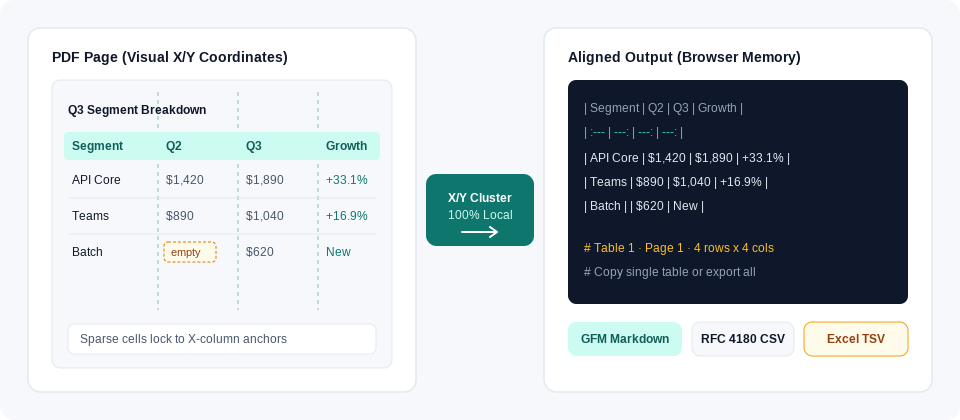
- X-Coordinate Column Clustering Clusters cell X-positions across rows so empty cells keep their column slot and trailing numbers never shift left.
- Single-Table Picker & Multi-Format Export Switch between individual tables across pages or combine All Tables, with instant GFM Markdown, HTML preview, CSV, and TSV tabs.
- 100% Browser-Local Privacy Confidential financial filings, SaaS invoices, and internal metrics never leave your device. No signup, no file limits, zero AI fees.
How to Extract PDF Tables in 3 Steps
-
Drop a PDF or Load a Table Sample
Click a built-in table sample (Financial Report, SaaS Invoice, or Model Benchmark) or drop any digital PDF into the workbench.
-
Select Tables & Tune Formatting
Select All Tables or a single detected table, tune Column Gap sensitivity, and toggle header row or numeric alignment (---:).
-
Copy or Download GFM, CSV, or TSV
Inspect the live HTML table preview, then copy or download clean GFM Markdown (.md), RFC 4180 CSV (.csv), or spreadsheet TSV (.tsv).
Why Copy-Pasting Tables from a PDF Fails
When you highlight and copy a financial statement, pricing matrix, or invoice table from a standard PDF viewer, the clipboard strips column boundaries and flattens every row into broken spaces. Manually adding pipe separators (|) and aligning blank cells takes longer than reading the report itself, especially across multi-page documents.
Our PDF Table to Markdown Converter parses text positions directly inside your web browser instead of guessing from plain clipboard text. By inspecting the horizontal X and vertical Y coordinates of every text fragment, the tool rebuilds structured multi-column tables and exports them simultaneously as GitHub Flavored Markdown (GFM), RFC 4180 CSV, and Excel-ready TSV without uploading your file to any server.
How Coordinate-Based PDF Table Extraction Works
Unlike naive extractors that turn any gap into a new column regardless of position across rows, our table workbench clusters horizontal column anchors across each table block:
- Row Grouping by Y-Coordinate: Text items sharing the same baseline tolerance are grouped from top to bottom on each selected page.
- Column Gap Splitting: Consecutive spans separated by more than the selected gap threshold (Auto, Tight, or Wide) split into candidate table cells.
- X-Anchor Clustering for Sparse Cells: All cell starting
Xpositions across consecutive multi-column rows are clustered into shared column anchors. If row 3 leaves the second column blank, the remaining values snap cleanly to columns 3 and 4 instead of shifting left. - Numeric Column Alignment & Escaping: Columns dominated by numbers, percentages, or currency amounts automatically get right-aligned
---:separators when enabled, while literal|characters inside cell text are escaped as\|so your Markdown never breaks.
Need headings, paragraphs, and bullet lists in addition to tables? Use the full PDF to Markdown Converter on our home page. Compiling academic drafts for Overleaf instead? Try the PDF to LaTeX Converter.
Choosing Between GFM Markdown, CSV, and TSV
Different downstream workflows expect different table delimiters. Our extractor generates all three formats from the same detected grid so you can inspect and export the exact format you need:
| Output Format | Best Used For | Key Advantage |
|---|---|---|
| GFM Markdown | GitHub READMEs, Obsidian notes, LLM / RAG prompts | Preserves headers, numeric alignment (---:), and escaped pipes (|) |
| RFC 4180 CSV | Python pandas, SQL imports, scripts |
Quotes cells safely when values contain commas or quotes |
| Tab-Separated TSV | Direct paste into Excel or Google Sheets | Single copy-paste lands cleanly across spreadsheet columns |
Tuning Extraction for Dense Financial Reports & Invoices
Real-world PDFs vary widely in font size and column spacing. Use the workbench controls to dial in clean structure before copying:
- Column Gap (
Auto/Tight/Wide): Switch to Tight (dense) when narrow financial columns sit close together and two columns merge into one. Switch to Wide (spaced) if wide word spacing inside prose sentences triggers false column splits. - First Row as Header: Keep checked for normal titled tables, or uncheck when continuing a table from a previous page so the first data row is not promoted to
<th>and auto-generatedColumn 1,Column 2headers are inserted cleanly. - Right-Align Numbers (
---:): Adds GFM right-alignment markers for currency, integer, and percentage columns in both Markdown source and HTML preview. - Pad GFM Columns: Pads cells with spaces so pipe dividers line up vertically in monospace code editors and pull requests.
- Page Range & Table Picker: Enter ranges such as
2-5or1,4to skip cover pages, then click individual chips (Table 1,Table 2, orAll Tables) to copy or download one specific table at a time.
Honest Limits: Merged Cells, Wrapped Rows, and Scanned PDFs
Because extraction runs 100% client-side on the PDF's embedded text layer, it handles digital PDFs exported from spreadsheets, Word, LaTeX, billing systems, and financial portals cleanly. Two boundaries are worth knowing upfront:
- Multi-line wrapped cells or complex merged headers: Standard X/Y coordinate clustering assumes one PDF baseline corresponds to one table row. Cells that wrap onto two lines inside a grid without borders may appear as adjacent rows that need a quick merge after export.
- Scanned image PDFs: Paper scans and smartphone photos have no embedded text coordinates. When our tool encounters a page with zero text layer, it flags that page honestly instead of guessing. For image-based tables, compare managed and self-hosted vision models in our AI OCR Cost Calculator, review Mistral OCR vs DeepSeek-OCR 2, or check our Docling PDF to Markdown Guide.
Related Converters & OCR Guides
Frequently Asked Questions
How does this PDF Table to Markdown converter detect columns without uploading my file?
OCR2MD reads the embedded PDF text layer locally inside your browser using JavaScript and groups words by their X and Y coordinates into column anchors. Your PDF stays in browser memory and is never sent to any external server.
What if a table has blank cells or tightly spaced columns?
Column anchors are clustered across the entire table block so blank cells stay empty in their proper column instead of shifting trailing data left. If tightly spaced columns merge, switch Column Gap to Tight (dense) in the options panel.
Should I copy Markdown, CSV, or TSV from a PDF table?
Use GFM Markdown for GitHub, Obsidian, Notion, or LLM prompts; download RFC 4180 CSV for Python pandas or databases; and copy TSV when pasting directly into Microsoft Excel or Google Sheets.
Can I extract just one table from a multi-page PDF?
Yes. After conversion, the table selector bar above the viewer lists every detected table by page and dimensions (for example, Table 2 · P2), letting you preview, copy, or download either a single table or all tables together.
What happens if my PDF table is a scanned image or photo?
If a PDF page has no selectable text layer (such as a flat scan or camera photo), local JavaScript extraction cannot read pixel tables. OCR2MD detects and flags those scanned pages and links you to our AI OCR Cost Calculator to compare vision OCR options.
No comments yet. Let us know how your PDF tables extracted or what layout we should handle next.